Documentation
Gofly – Tour and Travel Booking React NextJS Template
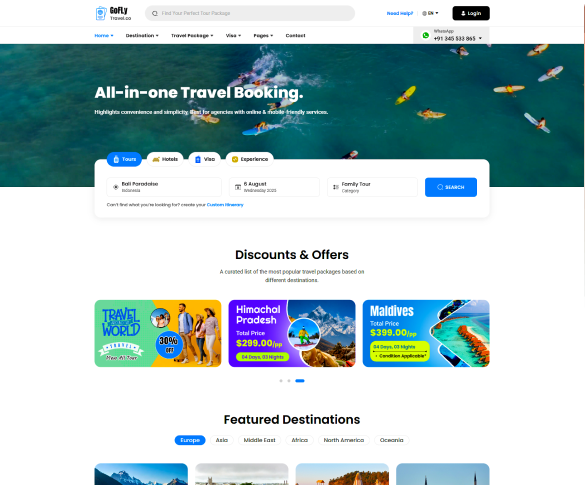
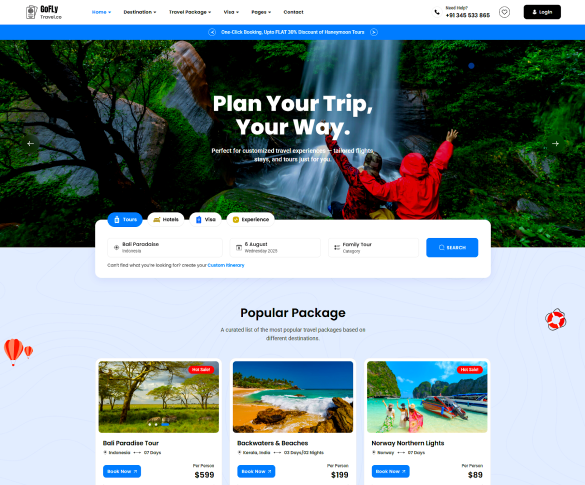
GoFly is a modern and feature rich tour and travel booking Next JS template designed for agencies, tour operators, and travel businesses. It offers everything you need to create a professional travel booking website, including tours, hotels, visa services, holiday packages, and adventure activities. With a mobile-friendly design, advanced search filters, and easy customization, GoFly helps you deliver seamless booking experiences for your customers. This template has 8 unique Demos with different styels of core features also ensures performance, flexibility, and elegance in every detail.
- Item Name: Gofly – Tour and Travel Booking React NextJS Template
- Author: Egens lab
- Created: 27 Oct, 2025
- Version: 1.0
If you have any questions that are beyond the scope of this help file, Please feel free to email via Item Support Page.
Installation
Follow the steps below to set up your site template for Next.js:
-
Download & Unzip: Unzip the downloaded package and open the
/nextjsfolder to find all the template files. -
Install Dependencies: Open a terminal in the
/nextjsfolder and run:
npm installoryarn install -
Start Development Server: Run:
npm run devoryarn dev
This will start the Next.js development server athttp://localhost:3000. -
Folder Structure: The main folders you will work with:
pages/– Application pages (routes)components/– Reusable React componentspublic/assets/– Static files (images, CSS, JS, fonts)styles/– CSS/SCSS files
-
Build for Production: When ready to deploy, run:
npm run buildandnpm start -
Customization: Add your content and images in the
public/assets/folder and update components/pages as needed.
For more details, see the official Next.js Documentation.
Image and Favicon Setting
Gofly download package does not contain actual images which are there in our online demo due to
licensing limitation and this is already mentioned in item description also as per Envato policy. We
are using placeholder images instead of real images. You can replace placeholder image url with your
image url like assets/images/image.jpg and make sure to put the image in /images/
folder.
                    <img src="https://placehold.it/750x500" alt="image alt text">
                        Change to
                    <img src="assets/images/image.jpg" alt="image alt text">
Folder Structure
Next.js Project Structure
      my-nextjs-project/
      ├── public/
      │   └── assets/
      │       └── images/
      ├── src/
      │   ├── app/
      │   │   └── (application entry, layouts, pages)
      │   ├── components/
      │   │   └── (reusable React components)
      │   ├── custom-hooks/
      │   │   └── (your custom React hooks)
      │   ├── data/
      │   │   └── (static data, JSON, mock data)
      │   ├── utils/
      │   │   └── (utility/helper functions)
      │   ├── fonts/
      │   │   └── (custom font files)
      │   └── styles/
      │       └── (CSS/SCSS files)
      ├── package.json
      ├── next.config.js
      └── ...
- public/: Static files like images, favicon, robots.txt.
- src/app/: Application entry, layouts, and route handlers (Next.js App Router).
- src/components/: Reusable React components.
- src/custom-hooks/: Your custom React hooks.
- src/data/: Static data, JSON files, or mock data.
- src/utils/: Utility/helper functions.
- src/fonts/: Custom font files (woff, ttf, etc).
- src/styles/: CSS or SCSS files for styling.
Home Page Demos

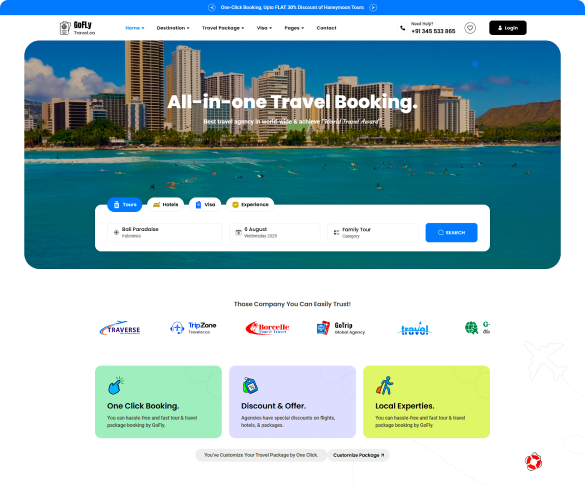
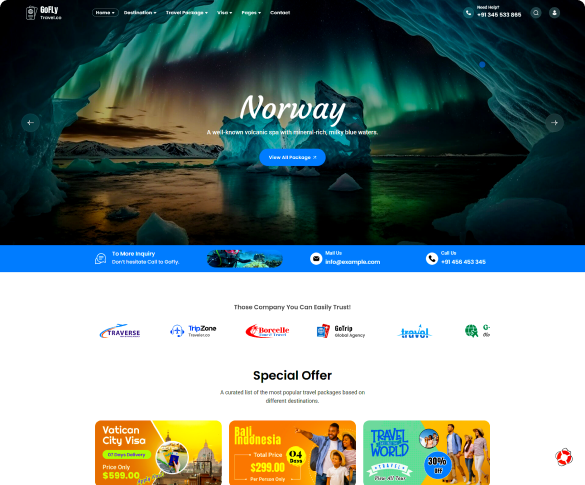
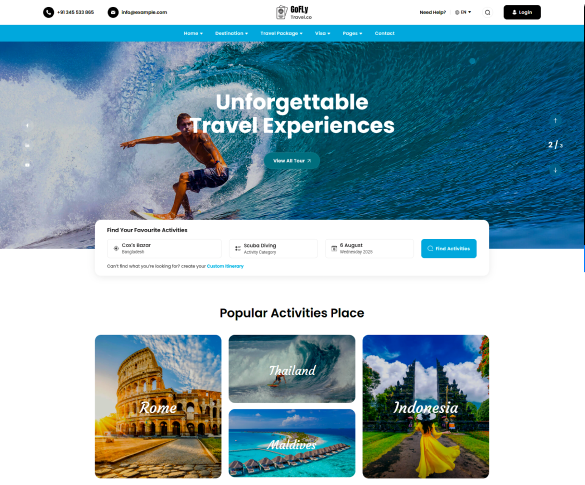
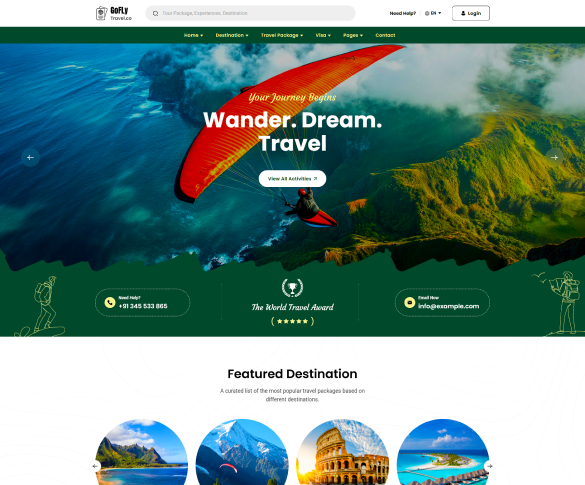
Header





Using DM Sans & Manrope Fonts in Next.js (src/fonts Setup)
To use DM Sans and Manrope with Next.js and src/fonts
folder, follow these steps:
-
Add Font Files:
- Place your
DM SansandManropefont files (woff2/woff/ttf) insrc/fonts/.
- Place your
-
Configure Font in
src/fonts:-
Create
src/fonts/dmsans.jsandsrc/fonts/manrope.jsusingnext/font/local:import localFont from 'next/font/local'; export const dmsans = localFont({ src: [ { path: './DMSans-Regular.woff2', weight: '400', style: 'normal', }, // Add more weights/styles if needed ], variable: '--font-dmsans', display: 'swap', });import localFont from 'next/font/local'; export const manrope = localFont({ src: [ { path: './Manrope-Regular.woff2', weight: '400', style: 'normal', }, // Add more weights/styles if needed ], variable: '--font-manrope', display: 'swap', });
-
Create
-
Import Fonts in
layout.js:-
In
src/app/layout.js:import { dmsans } from '../fonts/dmsans'; import { manrope } from '../fonts/manrope'; export default function RootLayout({ children }) { return ( <html lang="en"> <body id="body" className={`tt-magic-cursor ${dmsans.variable} ${manrope.variable}`}> {children} </body> </html> ); }
-
In
-
Use the Fonts in CSS:
-
In your global CSS (e.g.,
src/styles/globals.css):body { font-family: var(--font-dmsans), var(--font-manrope), sans-serif; }
-
In your global CSS (e.g.,
Now your Next.js project uses DM Sans and Manrope from src/fonts and applies them globally.
See Next.js local fonts docs for more.
Dependencies
The following dependencies are included in the package.json for the Next.js version:
nextReact frameworkreactUI libraryreact-domReact DOM bindingsswiperModern slider/carouselgsapAnimation libraryreact-animated-cursorAnimated cursorreact-apexchartsChartsapexchartsCharts corereact-compare-sliderImage comparison sliderreact-confettiConfetti animationreact-confetti-explosionConfetti explosionreact-countupAnimated counterreact-modal-videoModal video playerreact-slickCarousel/sliderwowjsScroll animationsyet-another-react-lightboxLightbox gallery
bootstrapCSS framework@faker-js/fakerFake data for developmenteslintLintingeslint-config-nextNext.js ESLint config
All plugins are integrated as React/Next.js compatible packages. jQuery is not required for the Next.js version.
Version 1.0 - Current Version
Version 1.1
Comming Soon
Section Title
<div class="row justify-content-center">
                  <div class="col-md-8 col-xl-6">
                      <div class="section-title">
                          <h2>Featured Causes</h2>
                          <p>There are many variations of passages of Lorem Ipsum available, but the majority have suffered alteration in some form,</p>
                      </div>
                  </div>
                </div>
=
Three Equal columns
<div class="container">
                    <div class="row">
                      <div class="col">
                        Column
                      </div>
                      <div class="col">
                        Column
                      </div>
                      <div class="col">
                        Column
                      </div>
                    </div>
                  </div>
Source & Credits
Images:
- Unsplash - https://unsplash.com/
Icons:
- Icons Font Face - https://icons.getbootstrap.com
- Icons Font Face - https://boxicons.com/
Scripts:
- jQuery - http://www.jquery.com/
- Bootstrap 5 - http://getbootstrap.com/
- swiperjs - https://swiperjs.com/
- GSAP js - https://greensock.com/gsap/
- Wow js - https://github.com/michalsnik/aos
Support
If this documentation doesn't answer your questions, So, Please send us Email via Item Support Page
We are located in GMT +5:30 time zone and we answer all questions within 12-24 hours in weekdays. In some rare cases the waiting time can be to 48 hours. (except holiday seasons which might take longer).
Don’t forget to Rate this template
Go to your Themeforest Profile > Downloads Tab > & then You can Rate & Review for our template.
Thank You.
More Templates
Checkout Our Below Premium Templates